Data-driven widgets
The widgets in Module 2 dealt with single values — one text field, one checkbox, one slider. Many real applications need to display and manage collections of data: lists of files, hierarchies of items, tables of records. wxRuby3 provides three powerful widgets for this: Wx::ListCtrl, Wx::TreeCtrl, and Wx::Grid.
This lesson builds a working demo for each, using the multi-file structure from lesson 3.2. Each widget gets its own panel class in its own file. The app runs after every addition.
File structure
data_widgets_app/
├── main.rb
└── lib/
    ├── app_frame.rb
    └── panels/
        ├── list_panel.rb
        ├── tree_panel.rb
        └── grid_panel.rb
Start fresh
Create main.rb:
|
|
Create lib/app_frame.rb:
|
|
Run it with ruby main.rb. An empty window with a notebook — no tabs yet. The skeleton is in place.
Step 1 — ListCtrl
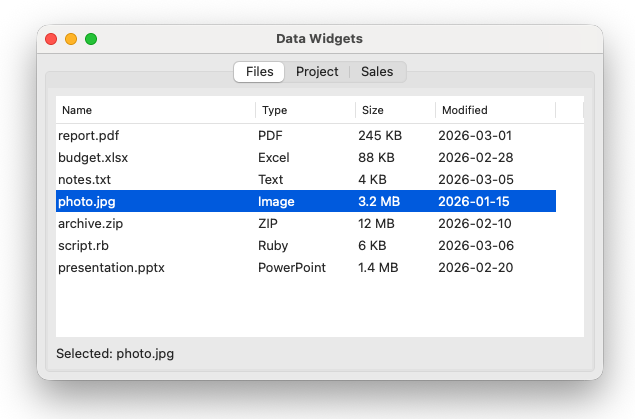
Wx::ListCtrl displays a list of items, optionally with multiple columns. The report style (Wx::LC_REPORT) gives you the familiar file-manager column view.
Create lib/panels/list_panel.rb:
|
|
Now add it to app_frame.rb — one require_relative at the top and one add_page in build_ui:
|
|
Run it. A Files tab appears with a four-column list. Click a row — the status label updates. Double-click — a dialog appears. Click a column header — the list sorts by that column, toggling ascending and descending.
Key points about ListCtrl:
- Items are added with
insert_item(index, first_column_text), then individual cells set withset_item(index, column, text) event.indexgives the row index of the selected itemLC_SINGLE_SELrestricts to one selection — remove it for multi-selectevt_list_item_selectedfires on single click,evt_list_item_activatedon double-click
Step 2 — TreeCtrl
Wx::TreeCtrl displays a hierarchy. Each node can have children that expand and collapse. It is the right widget for file system trees, category hierarchies, and any nested structure.
Create lib/panels/tree_panel.rb:
|
|
Add it to app_frame.rb:
|
|
Run it. A Project tab appears alongside Files. Click any item to select it. Double-click a folder to expand or collapse it; double-click a file to open it.
To traverse the tree programmatically — useful when you need to collect all items:
|
|
The cookie pattern is wxWidgets’ mechanism for iterating children — first_child returns the first child and a cookie value; next_child uses that cookie to advance to subsequent children.
Step 3 — Grid
Wx::Grid provides a spreadsheet-style table. Use it for tabular data that users can view and edit in place.
Create lib/panels/grid_panel.rb:
|
|
Add it to app_frame.rb:
|
|
Run it. Three tabs, all working. Click a cell in the Sales tab — the status updates. Click a numeric cell and type to edit it. The product column is read-only.
Always call event.skip in grid event handlers — the grid needs to process the event itself after your handler runs.
Choosing the right widget
| Situation | Widget |
|---|---|
| Flat list, possibly with columns | Wx::ListCtrl |
| Nested hierarchy | Wx::TreeCtrl |
| Editable table with rows and columns | Wx::Grid |
| Simple list, no columns needed | Wx::ListBox |
Wx::ListBox from Module 2 is appropriate for short, simple lists. Use ListCtrl once you need columns, sorting, or large numbers of items.
Previous: Application structure | Next: File I/O and preferences