Module 05 — Pie, Donut, and Rose Charts: Industry Sales Composition
What We’re Building
Pie and donut charts show composition — how a whole divides into parts. This
module builds four variants of the same chart from one dataset and one service,
demonstrating how much variety is available from a single Chart::Series::Pie
configuration.
By the end of this module you will have:
Chart::Series::Pie— a new series type- A basic pie chart
- A donut chart with a centre label
- A rose (nightingale) chart
- A half-donut dashboard variant
- Rich item-trigger tooltip formatters
- The
**extraescape hatch in practice
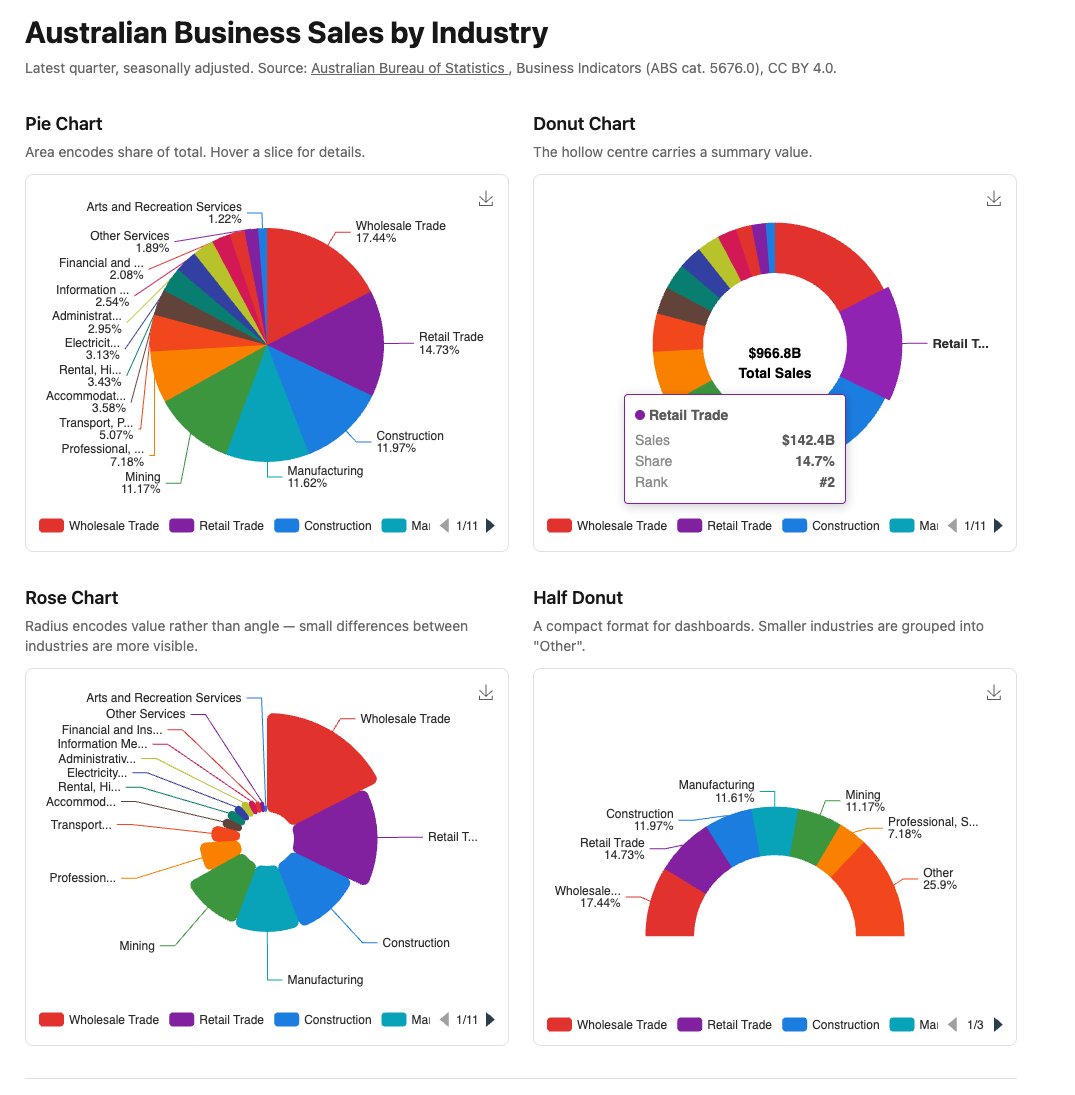
Here’s what we’re building:
5.1 — Chart::Series::Pie
Pie charts use a single series. The data is an array of { name:, value: } hashes
— not parallel arrays like line and bar charts.
The equivalent JavaScript:
|
|
In Ruby:
|
|
Chart::Series::Pie adds type: "pie" automatically. radius:, center:,
label:, and emphasis: are common options that pass through unchanged.
The **extra escape hatch
Some pie chart variants require options not in everyday use — roseType:,
startAngle:, endAngle:. These are not modelled explicitly in the DSL. They
pass through **opts in Chart::Series::Base unchanged:
|
|
This is the intended use of the escape hatch — ECharts has hundreds of series options. The DSL models the most common ones; everything else just works.
Item trigger tooltips
Pie charts use trigger: "item" — the tooltip fires on a single slice, not on
a cross-axis position. The params object contains the slice name, value, and
ECharts’ calculated percentage:
|
|
The resolver qualifies "industrySlice" with the trigger automatically —
it looks up "item:industrySlice" in the formatter registry. Add to
custom_chart_formatters.js:
|
|
params.dataIndex is the zero-based position of the slice in the data array —
adding 1 gives the rank. params.percent is ECharts’ calculated percentage —
you don’t need to compute it yourself.
ECharts label template variables
The label.formatter string supports template variables that ECharts resolves
before rendering:
| Variable | Value |
|---|---|
{a} |
Series name |
{b} |
Slice name |
{c} |
Value |
{d} |
Percentage (calculated by ECharts) |
|
|
These pass through the formatter resolver unchanged — they are not in the registry and ECharts handles them natively.
5.2 — The Service
The service selects the latest quarter’s data, rejects zero-value and total rows, and computes the percentage share for each industry. All transformation happens in the service — components receive clean data.
|
|
The service takes no arguments — it always returns the latest quarter. The
database does the filtering and ordering. No Ruby-side .select or .reject
on a loaded collection.
Why pre-compute share? ECharts calculates params.percent for tooltips,
but having share in the data means it is available for tests, CSV exports,
and any other consumer of this service without recomputing it.
5.3 — Chart 1: Basic Pie Chart
|
|
series_data is extracted into a private method — all four components use the
same mapping. Keeping it named makes chart_options readable.
5.4 — Chart 2: Donut with Centre Label
A donut is a pie with an inner radius. radius: ["40%", "68%"] — the first
value is the inner radius, the second the outer. The gap between them is the
donut hole.
ECharts has no native centre label. The graphic option overlays arbitrary
elements on the chart canvas:
|
|
label: { show: false } hides slice labels — the graphic overlay replaces
them. emphasis.label shows a label when a slice is hovered.
left: "center" and top: "middle" centre the graphic in the chart container.
This aligns with the donut hole because the donut is also centred at ["50%", "45%"].
5.5 — Chart 3: Rose Chart
A rose (nightingale) chart gives each slice an equal angle but varies the radius by value. Differences between similar-sized industries are more visible than in a standard pie.
roseType: "radius" is not modelled in the DSL — it passes through via **extra:
|
|
radius: ["15%", "70%"] gives the rose an inner radius — combining donut and
rose modes. Without it the smallest slices collapse to a point at the centre.
itemStyle: { borderRadius: 6 } rounds the corners of each slice — a subtle
refinement that improves readability when slices are narrow. Passed through
**extra.
5.6 — Chart 4: Half Donut
startAngle: 180 and endAngle: 360 render only the top semicircle. The
smaller industries are grouped into “Other” in the service helper — a half
donut with 15 slices is unreadable.
|
|
center: ["50%", "72%"] shifts the centre point down so the flat edge sits
near the bottom of the chart area. startAngle: 180 and endAngle: 360 pass
through via **extra.
The “Other” grouping is a presentation concern — it belongs in series_data,
not in the service. The service returns all industries; the component decides
how many to show.
5.7 — The Plumbing
The service takes no arguments — the controller simply calls it:
|
|
|
|
<%# app/views/charts/industry_composition.html.erb %>
<div class="max-w-5xl mx-auto px-4 py-8">

  <h1 class="text-3xl font-bold mb-2">Australian Business Sales by Industry</h1>
  <p class="text-neutral-500 text-sm mb-8">
    Latest quarter, seasonally adjusted.
    Source: <a href="https://www.abs.gov.au" class="underline">
      Australian Bureau of Statistics
    </a>, Business Indicators (ABS cat. 5676.0), CC BY 4.0.
  </p>

  <div class="grid grid-cols-2 gap-6 mb-8">
    <div>
      <h2 class="text-lg font-semibold mb-1">Pie Chart</h2>
      <p class="text-neutral-500 text-sm mb-3">
        Area encodes share of total. Hover a slice for details.
      </p>
      <%= render Components::Charts::IndustryPie.new(
        data:   @data,
        height: "360px"
      ) %>
    </div>
    <div>
      <h2 class="text-lg font-semibold mb-1">Donut Chart</h2>
      <p class="text-neutral-500 text-sm mb-3">
        The hollow centre carries a summary value.
      </p>
      <%= render Components::Charts::IndustryDonut.new(
        data:   @data,
        height: "360px"
      ) %>
    </div>
  </div>

  <div class="grid grid-cols-2 gap-6 mb-8">
    <div>
      <h2 class="text-lg font-semibold mb-1">Rose Chart</h2>
      <p class="text-neutral-500 text-sm mb-3">
        Radius encodes value rather than angle — small differences between
        industries are more visible.
      </p>
      <%= render Components::Charts::IndustryRose.new(
        data:   @data,
        height: "360px"
      ) %>
    </div>
    <div>
      <h2 class="text-lg font-semibold mb-1">Half Donut</h2>
      <p class="text-neutral-500 text-sm mb-3">
        A compact format for dashboards. Smaller industries are grouped
        into "Other".
      </p>
      <%= render Components::Charts::IndustryHalfDonut.new(
        data:   @data,
        height: "360px"
      ) %>
    </div>
  </div>

  <div class="border-t border-neutral-200 pt-6">
    <p class="text-neutral-400 text-xs">
      Data: ABS Business Indicators, Australia (cat. 5676.0).
      Accessed via ABS Data API. CC BY 4.0.
    </p>
  </div>

</div>
Gallery card:
<%= render "charts/gallery_card",
  title:       "Industry Composition",
  description: "Four pie/donut variants — pie, donut, rose, and half donut — "\
               "showing Australian business sales by industry.",
  path:        charts_industry_composition_path %>
5.8 — Module Summary
New files:
| File | Purpose |
|---|---|
app/services/stats/business_composition.rb |
Latest quarter sales by industry |
app/views/components/charts/industry_pie.rb |
Standard pie chart |
app/views/components/charts/industry_donut.rb |
Donut with centre label |
app/views/components/charts/industry_rose.rb |
Rose/nightingale chart |
app/views/components/charts/industry_half_donut.rb |
Half donut dashboard variant |
Patterns introduced:
Chart::Series::Pie—{ name:, value: }data formatradius: ["inner%", "outer%"]— creates the donut holegraphicoption — arbitrary text overlay for centre labelsroseType: "radius"— nightingale/rose mode via**extrastartAngle/endAngle— half donut via**extraemphasis.label— hover-activated slice labelstrigger: "item"tooltip — single slice, not cross-axisitem:prefix — qualifier for item-trigger formatters- ECharts label template variables —
{b},{c},{d} **extraescape hatch — passing options not modelled in the DSL- “Other” grouping as a presentation concern in
series_data
When to use each variant:
| Variant | Use when |
|---|---|
| Pie | 5–8 categories, proportions are the message |
| Donut | Summary value in centre, dashboard layout |
| Rose | Similar-magnitude values, visual impact over precision |
| Half donut | Vertical space constrained, 6 or fewer categories |
Next: Module 06 — Calendar Heatmap: Daily Activity